> For the complete documentation index, see [llms.txt](https://docs.unisat.io/llms.txt). Markdown versions of documentation pages are available by appending `.md` to page URLs; this page is available as [Markdown](https://docs.unisat.io/products/unisat-inscribe/how-to-inscribe-gallery.md).
# How to Inscribe Gallery
Inscribe Gallery lets you turn any existing collection's JSON files into a fully on-chain gallery, making your collection stored and verifiable on Bitcoin.
## How to Inscribe Gallery
* Visit:
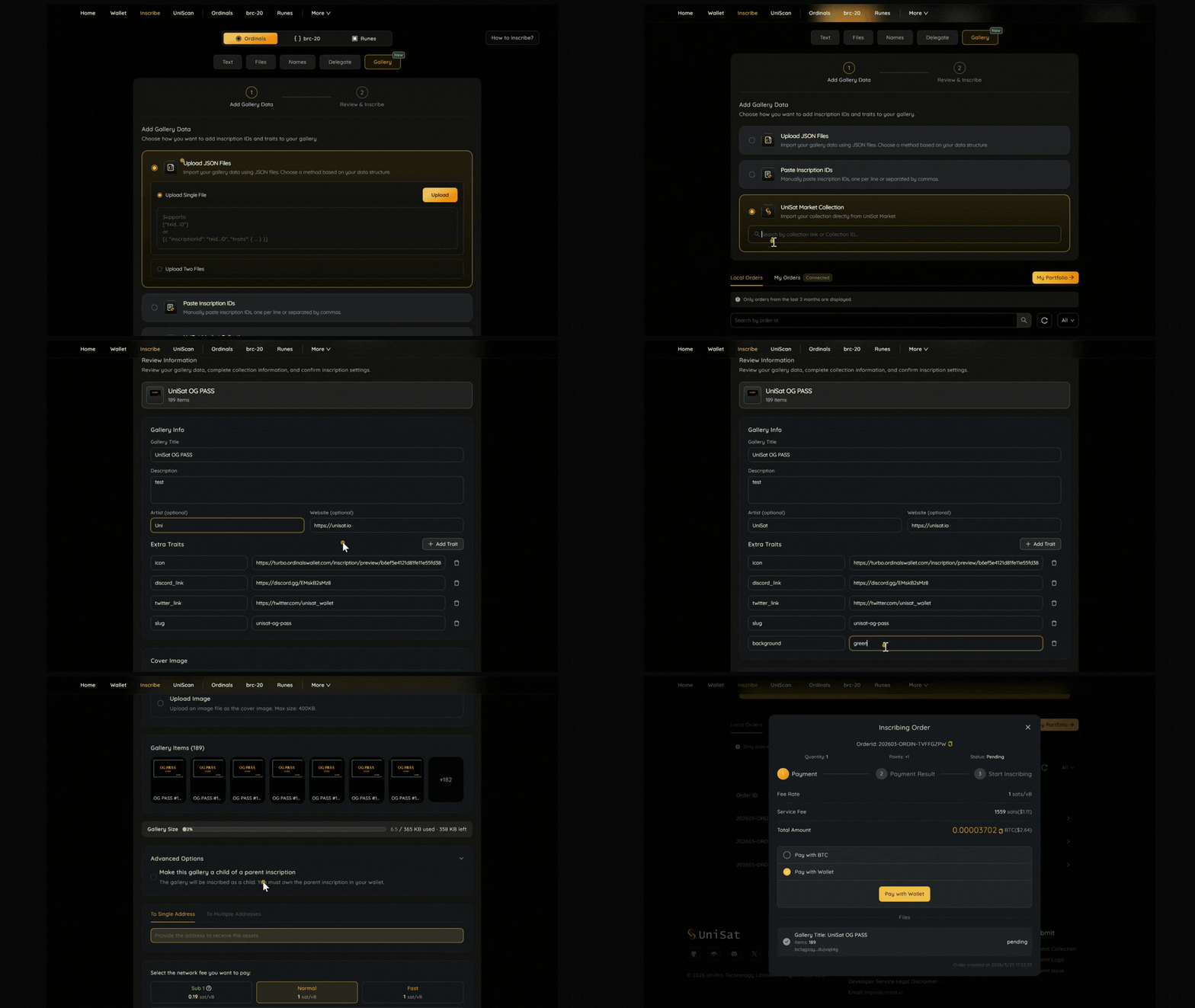
* Go to the **Gallery** tab under the **Ordinals** section.
### Step 1: Add Gallery Data
You can add your gallery data in one of the following ways:
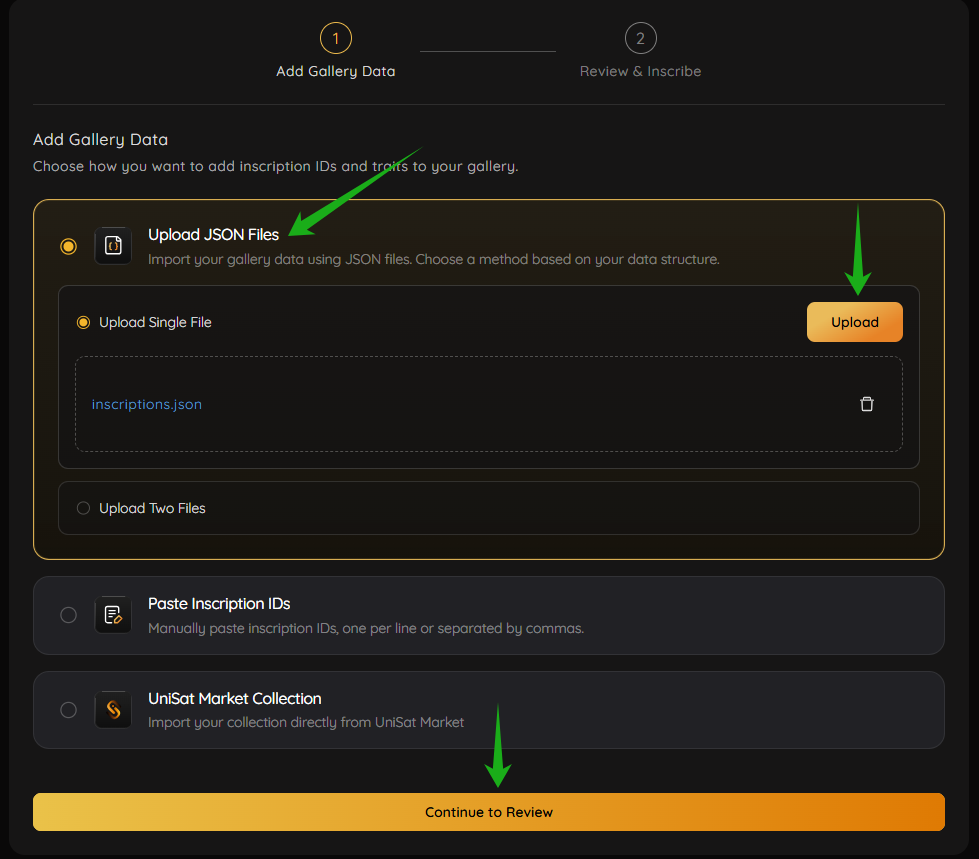
#### **1. Upload your collection JSON files**
You can choose to:
* Upload a single JSON file (Inscriptions JSON), or
* Upload two files (Metadata / Traits JSON + Inscriptions JSON)
We recommend uploading two files, as this allows the system to auto-fill collection details and reduces manual input.
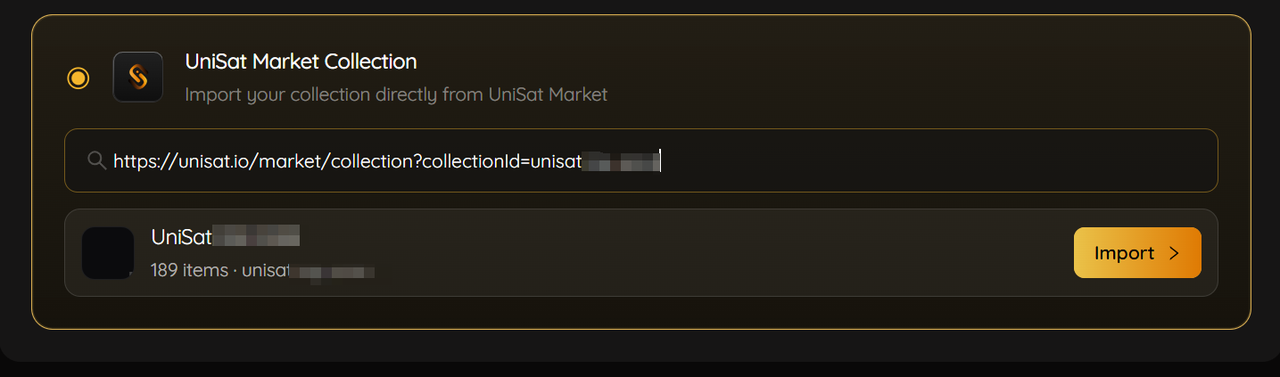
#### **2. Import directly from UniSat Marketplace (Recommended)**
This is the easiest method.
\
Simply paste the collection link or collection ID from UniSat Marketplace.For example: (*XXX is the collection name displayed on UniSat Marketplace URL*)
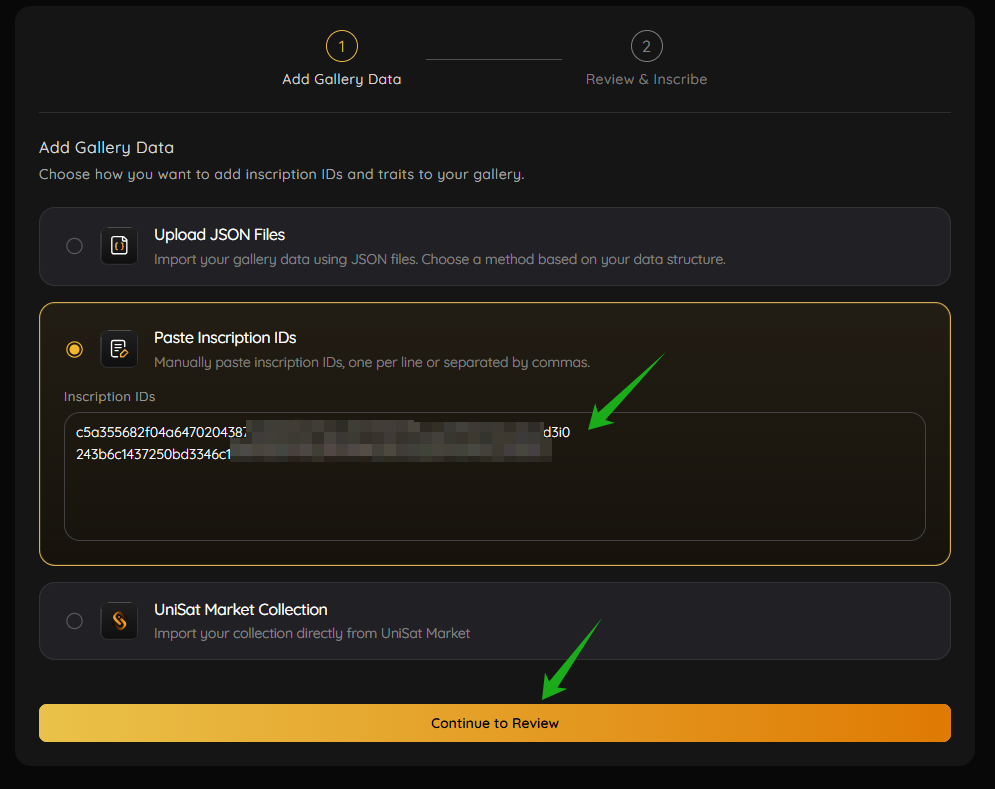
#### **3. Paste Inscription IDs manually**
You can manually input all inscription IDs of the collection:
* Paste them into the input box
* One per line or separated by commas
Make sure all inscription IDs are accurate before submitting
***
### Step 2: Review gallery Information
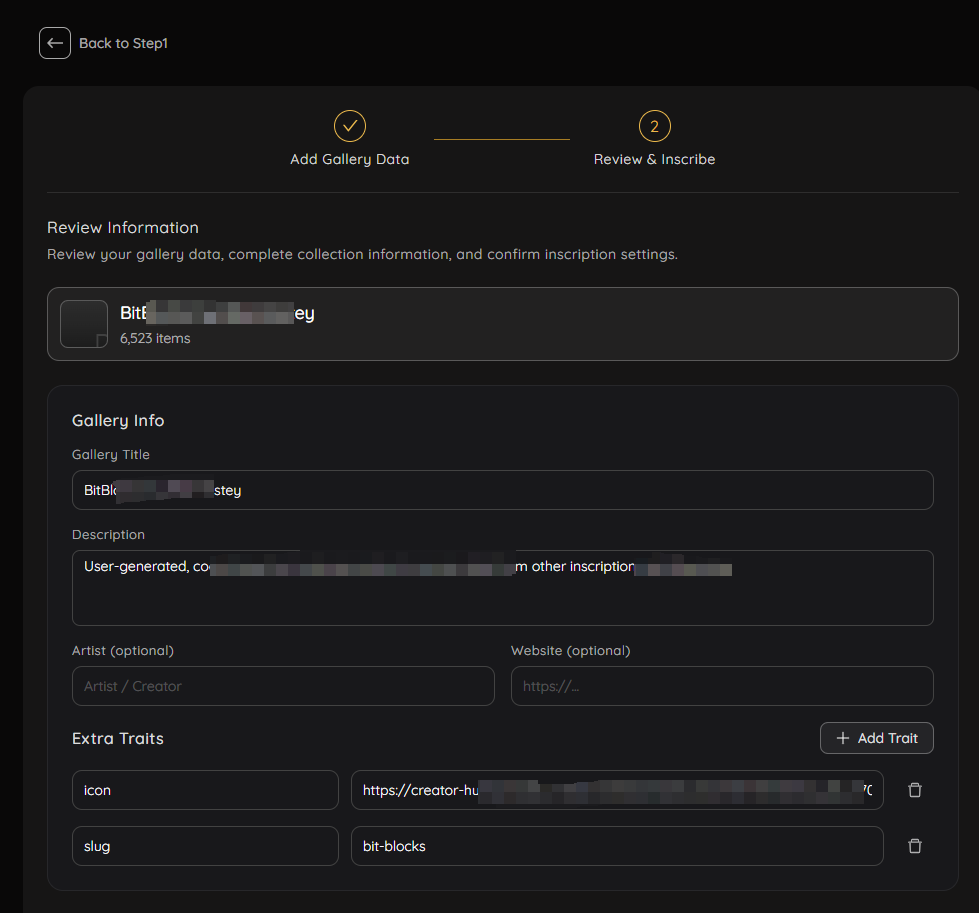
After uploading your gallert data, you will be redirected to the Review Gallery Information page.
\
Please review your gallery data, complete collection information, and confirm inscription settings.
You can also edit fields such as: Title, description, traits
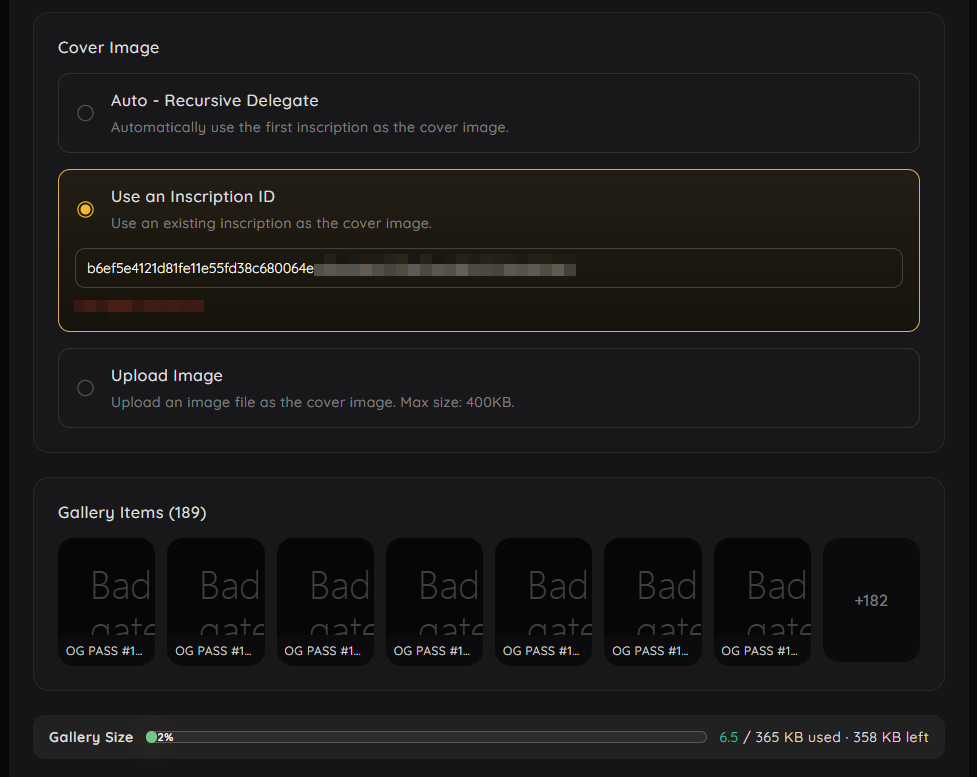
* **Cover image**
If your JSON data includes a specified inscription ID, the system will automatically select “Use an inscription ID” and fill it in.
You can switch to other options if needed.
Please make sure the image does not exceed the gallery size limit.
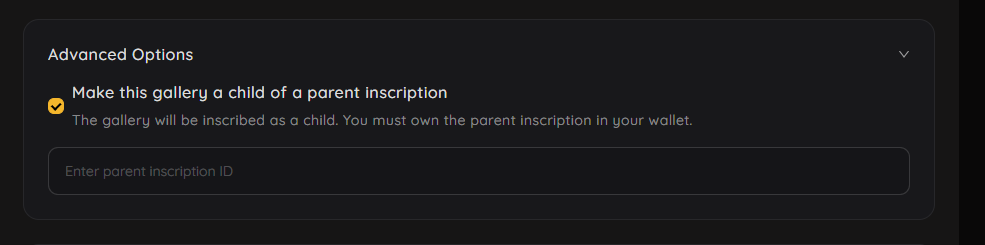
* **Advanced Options**
You can choose to make the gallery a child of a parent inscription. After setting, the gallery will be inscribed as a child.
You must own the parent inscription in your wallet -> Connect your wallet and provide the parent inscription ID
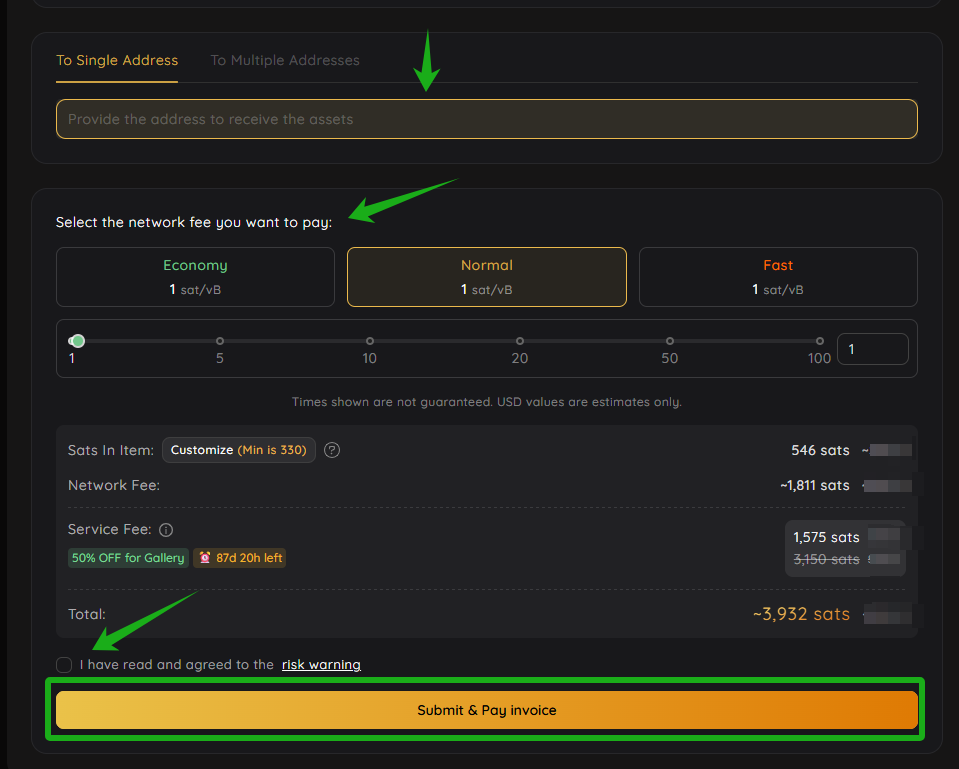
* **Finalize the Inscription**
Once everything is confirmed:
-> Enter the receiving address, set the fee rate, agree to the risk warning and sign the transaction
📌 Double-check all information you submitted before signing
***
### **Track Your G**allery **Inscribing Order**
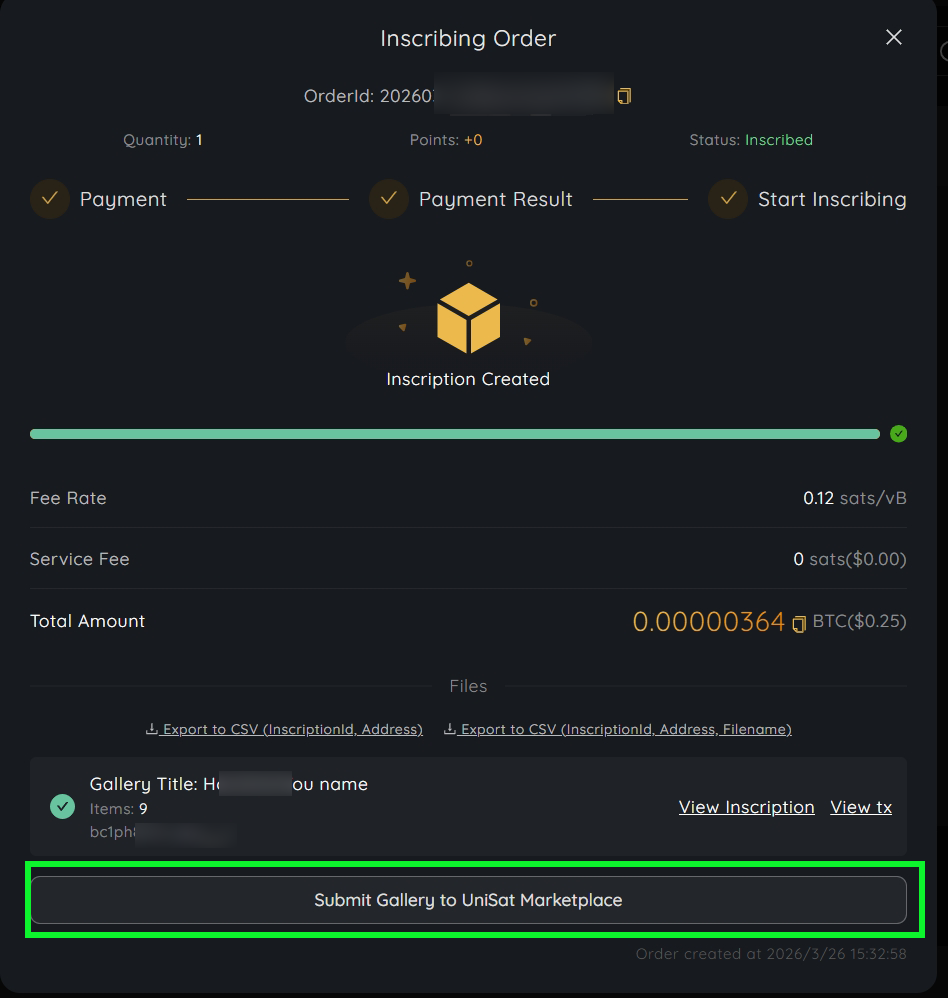
After creating gallery inscribing order, you can track its status under **My Orders** on the inscribe page.
Once your gallery is successfully inscribed, you can view it on:
* UniScan:
*
***
### Submit your Gallery to UniSat Marketplace
\
\- After the gallery is inscribed, a Submit button will appear on the page. You can use it to submit your gallery for listing on UniSat Marketplace.
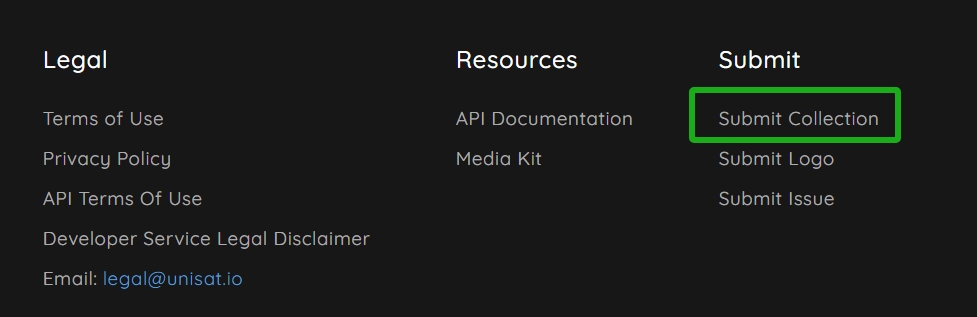
* Or via “Submit Collection” at the bottom of the website