> For the complete documentation index, see [llms.txt](https://docs.unisat.io/llms.txt). Markdown versions of documentation pages are available by appending `.md` to page URLs; this page is available as [Markdown](https://docs.unisat.io/fractal-bitcoin/cat-on-fractal/how-to-send-receive-cat20.md).
# How to send / receive CAT20?
**Step 1: Download the Chrome Extension**
• **Download UniSat Wallet**: Visit the official Chrome Web Store link for **UniSat Wallet** and verify that it has a large number of reviews and a verified checkmark to ensure it’s not a phishing site. Download link: [Here](https://unisat.io/download)
*Make sure you are using the latest version of the extension, which must be at least v1.5.0 or higher.*
\
**Step 2: Set Up Your Wallet**
• Install the extension and **set up your wallet**. During the setup process, **securely back up your seed phrase** and make sure **not to share** it or store it online.
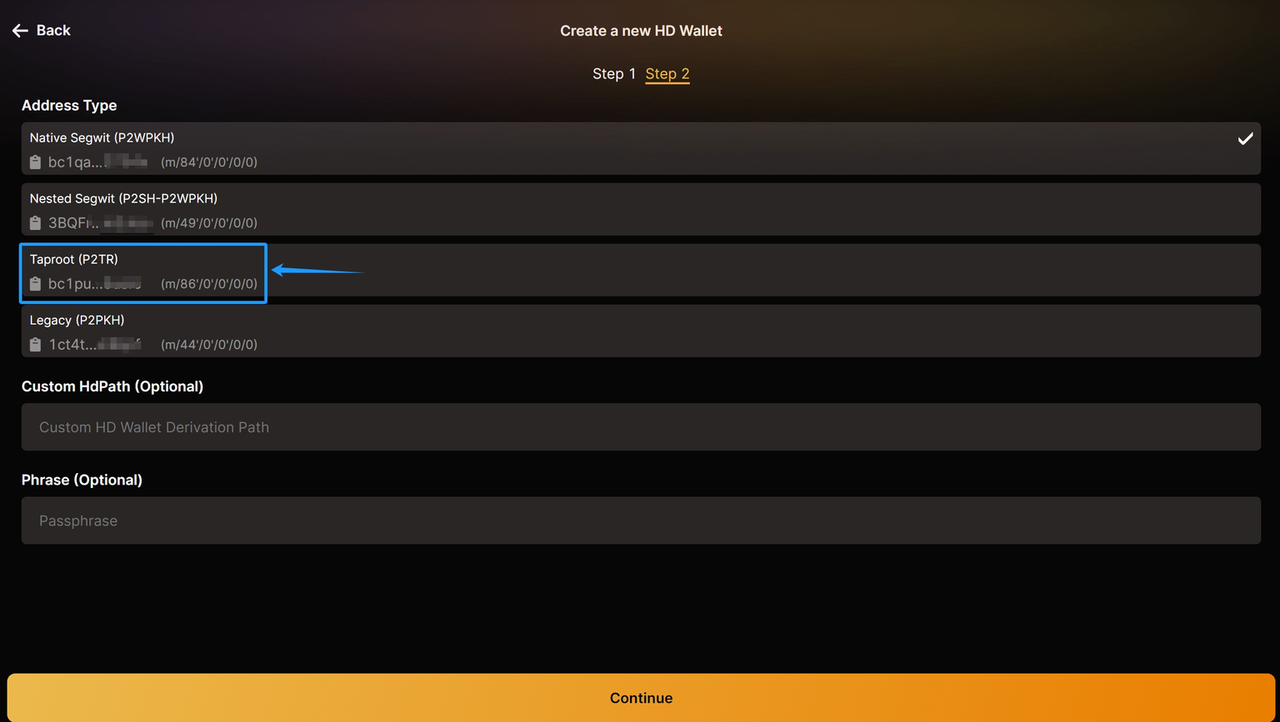
**Step 3: Select a Taproot Address**
• Ensure that you select a **Taproot address** to be compatible with Fractal Bitcoin.
Only **Taproot and Native Segwit** wallet addresses are supported to transfer CAT20 tickers.
\
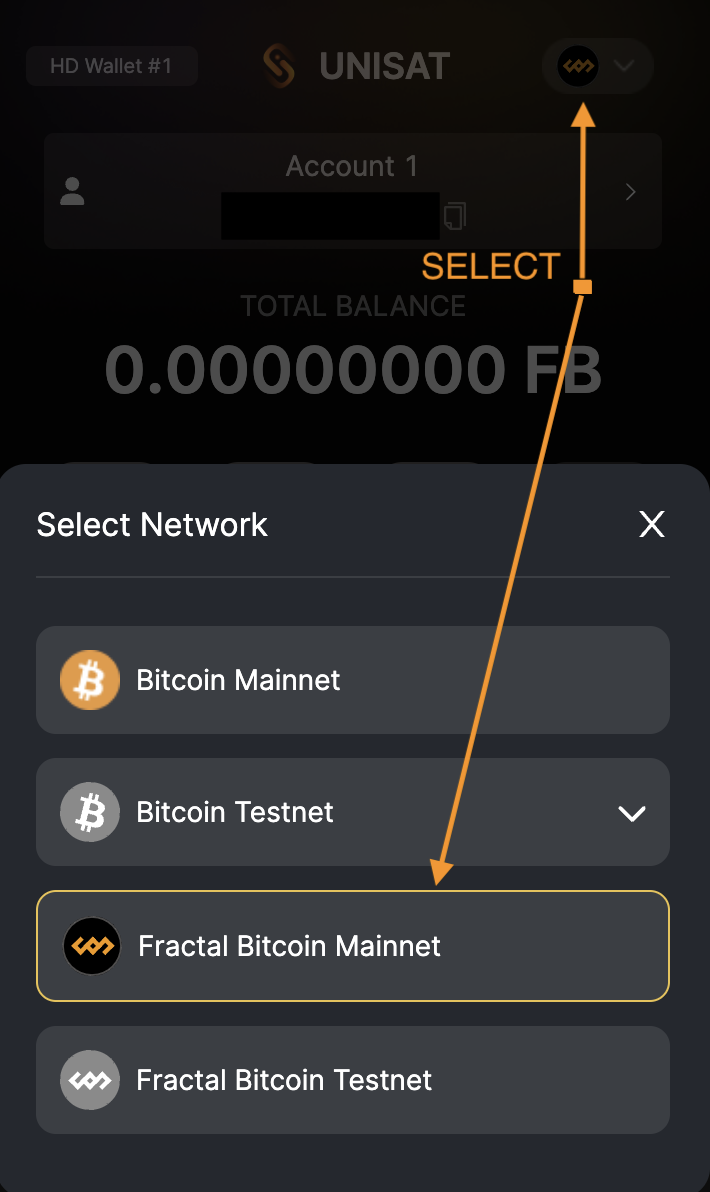
**Step 4: Toggle to Fractal Bitcoin**• In the wallet interface, navigate to the **top-right corner** and switch from **BTC Mainnet** to **Fractal Bitcoin Mainnet**.
\
**Step 5: Check Your CAT20 Balance**
• Once you’ve toggled to **Fractal Bitcoin**, your balance will be displayed.
• To **receive CAT20**, click **Receive** and copy your Fractal Bitcoin receiving address to share with others.(Taproot and Native Segwit wallet addresses only)
**Step 6: Send CAT20**
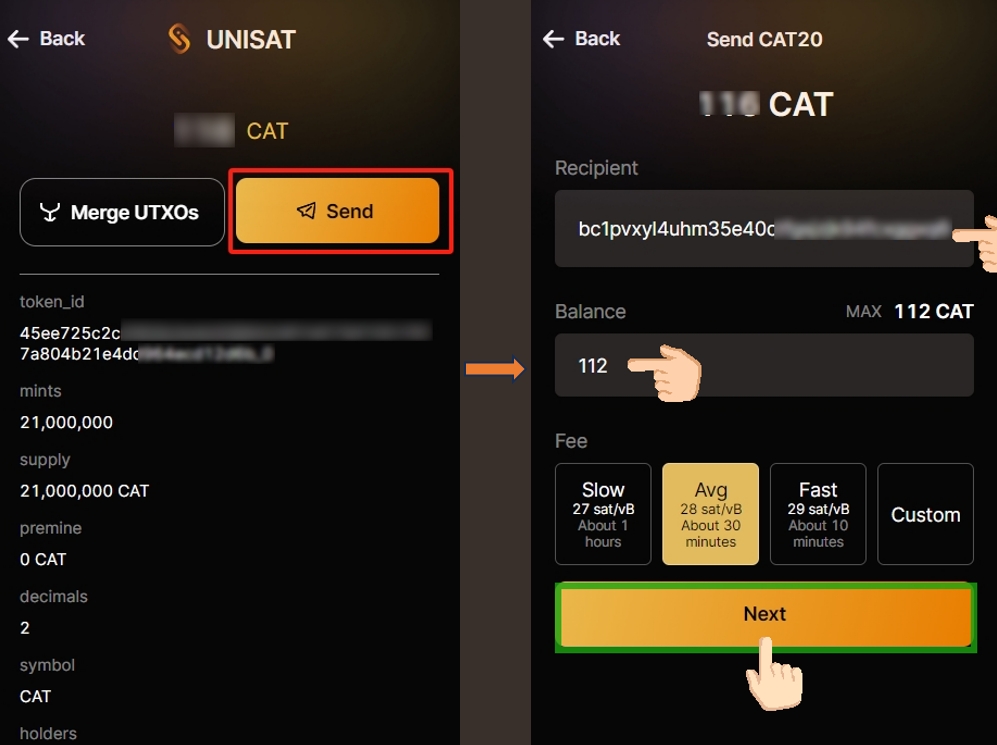
* To **send CAT20**, please click on the specific **CAT20 ticker** you want to send and then click on Send.
* Carefully review the transaction details, including **inputs** and **outputs**, before confirming. Once verified, click **Next** and sign the transaction.
> **Note**: You can send up to **4 UTXOs** in one transaction. After sending, the UTXOs will automatically merge into one.
***
**How to Merge CAT20 UTXOs**
\
Merging multiple CAT20 UTXOs into a single UTXO can only be done if they share the same genesis transaction. Follow these steps to merge your UTXOs:
\
**Step 1: Select the CAT20 Ticker**
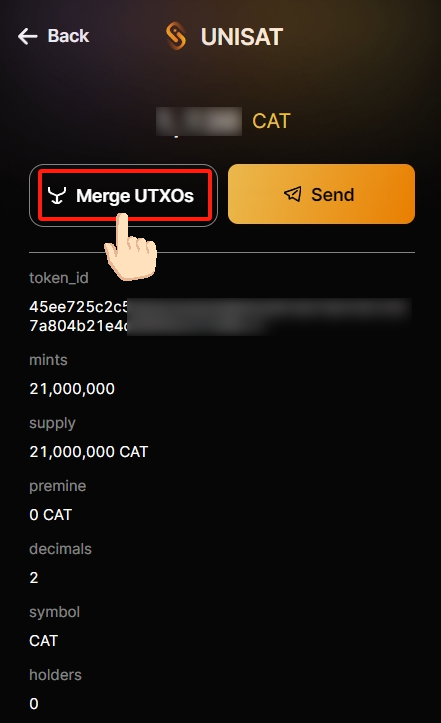
Select the CAT20 TickerClick on the specific **CAT20 ticker** you want to merge. In the pop-up menu, select **Merge UTXOs**.
#### **Step 2: Choose UTXOs to Merge**
* In the **Merge** window, select the number of UTXOs you wish to merge and set your fee rate.
* Review the transaction details to ensure accuracy, then click **Start Merging** to initiate the merging process.
> **Note**: You can merge up to **100 UTXOs** in one go.
\
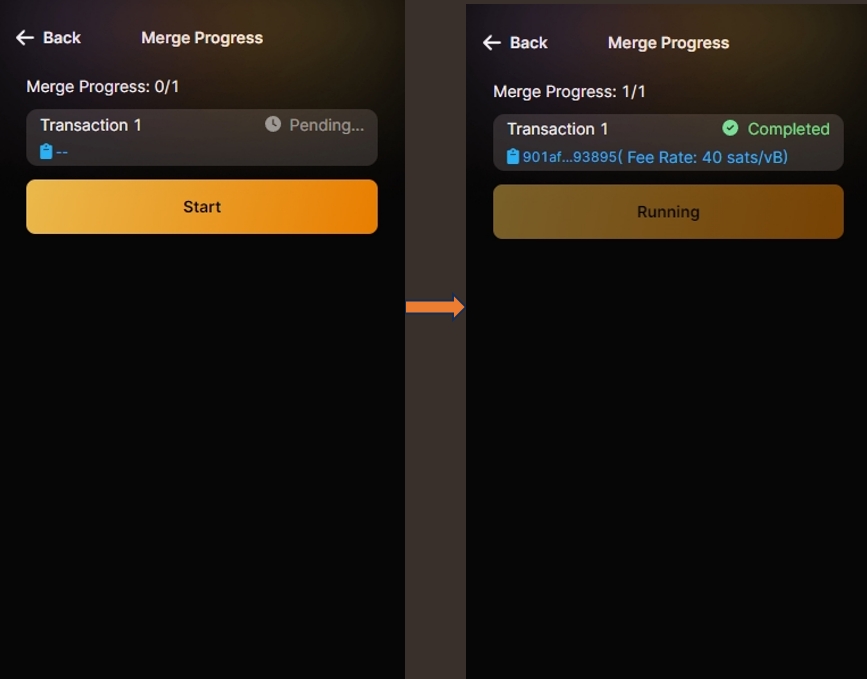
**Step 3: Confirm and Start the Merge**
* Once you’ve reviewed all the details, click **Start** to begin the UTXO merge. After the transaction is confirmed, you’ll see the progress in the wallet interface.
**Disclaimer:**
The content of this document is for informational purposes only. It does not constitute (i) investment advice or recommendations, (ii) an offer, solicitation, or inducement to purchase, sell, or hold digital assets, or (iii) financial, accounting, legal, or tax advice. Digital assets (including FTs and NFTs) are subject to market volatility, involve high risk, regulatory changes, and may depreciate in value. The information is provided "as is," and we make no warranties regarding its accuracy. Please consult your legal, tax, or investment professionals to determine whether trading or holding digital assets is suitable for you.