> For the complete documentation index, see [llms.txt](https://docs.unisat.io/llms.txt). Markdown versions of documentation pages are available by appending `.md` to page URLs; this page is available as [Markdown](https://docs.unisat.io/developer-support/how-to-acquire-a-unisat-api-key.md).
# How to Acquire a UniSat API Key
Previously, API keys were requested by contacting the UniSat team and applying via email. With the new Developer Center, you will need to register with your email and choose the appropriate plan.
Here are the steps to acquire a UniSat API Key:
* Visit [UniSat website](https://unisat.io/) and click '🌐' in the homepage navigation bar. From the dropdown menu, select 'API Service' to access the detailed API plans page. Alternatively, you can directly click [here](https://unisat.io/plans) to view the API plans.
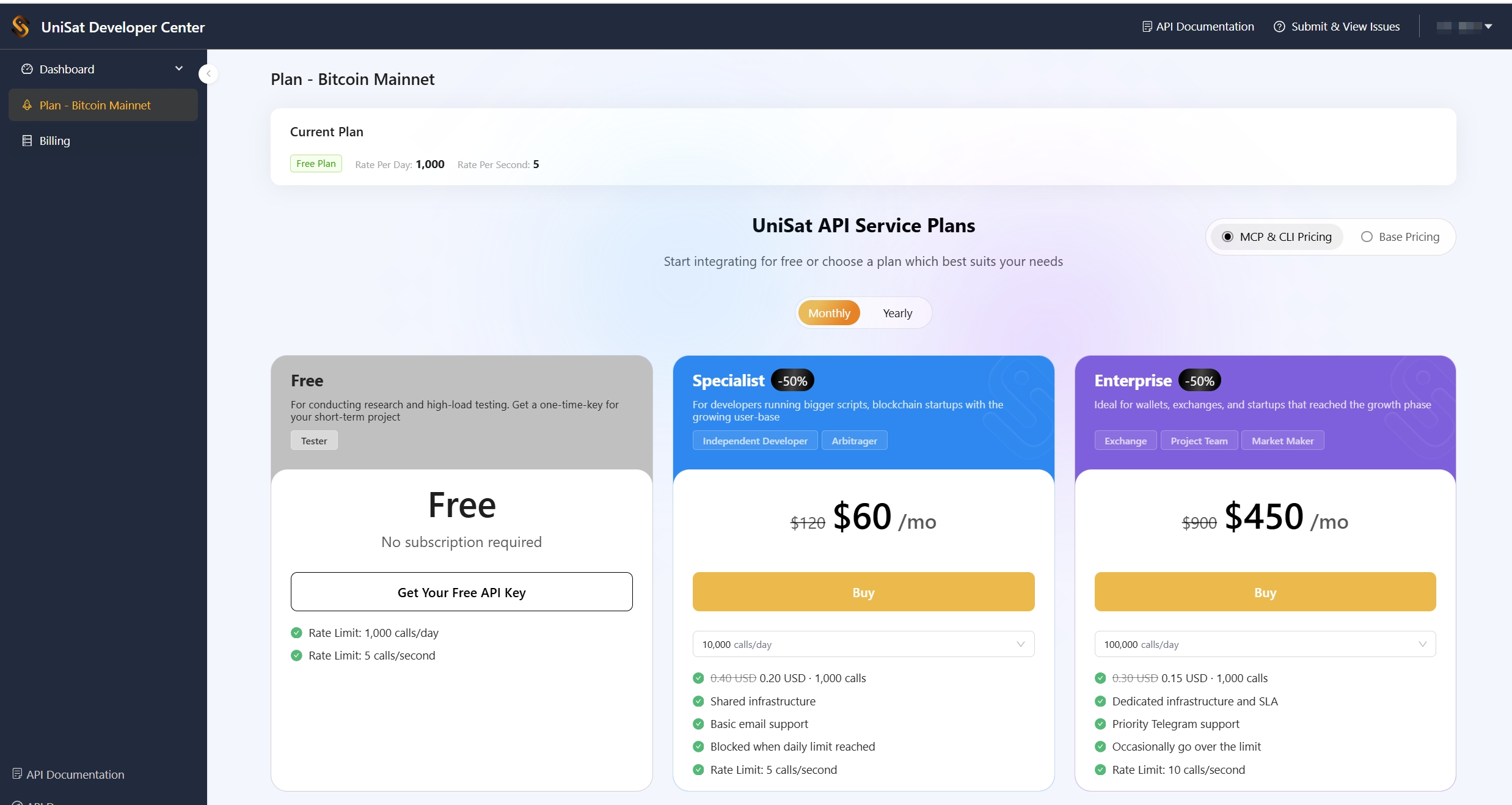
* Choose the plan that suits your needs and click '**Get Started**' under the detailed description of the plan to go to the Developer Center plan acquire page. Or you can click to enter the Developer Center, or click on
> Enjoy 50% off when you choose Specialist or Enterprise CLI & MCP limited-time plans
>
> Enjoy 20% off when you choose Specialist or Enterprise Base limited-time plans
* Before acquiring a plan, you need to register a Developer Center account using your email.
* Once registered, go to the Dashboard page where you will see your API Key current API Key configuration, and your API Request Log.
* For newly registered accounts, we offer developers a free access quota of 5 calls/second, 1,000 calls/day on Bitcoin
* Plans for Fractal Bitcoin are free to use.
* API Keys for Bitcoin and Fractal are separate and cannot be used interchangeably. You'll need to apply for a Bitcoin API Key and a Fractal API Key separately.
If you exceed the current usage limit, you can upgrade your API quota.
How do I upgrade my API plan?
* Click **"Upgrade Plan"** on the right side of your dashboard, or
* Click **"Plan – Bitcoin Mainnet"** in the upper-left corner to open the API plan selection page and choose a higher-tier plan.
* Choose the plan you need and click the '**Buy**' button under the specific plan to enter the acquire page.
* Payments are currently accepted via PayPal, BTC, and USDT(ETH & TRON).
Here is an example of a BTC payment method, click '**Pay with BTC**', then select '**Pay with Wallet**'. The page will prompt you to sign; confirm the input and output information carefully, and click 'Sign & Pay' to complete the acquire.
* After the acquire is complete, you can view your plan acquire record on the **Billing** page.